Lovable.dev is a popular AI-powered app builder for creating full-stack applications through natural language. Its GitHub integration lets you export your Lovable project to GitHub, giving you full code ownership and deployment flexibility.
This guide covers the complete process of exporting Lovable to GitHub in 2026: connecting your account, linking projects, setting up bi-directional sync, and deployment options. Whether you want to deploy to Vercel, continue development in VS Code, or own your code, we've got you covered.
What you'll learn: Two-part GitHub connection (account + project), bi-directional syncing, deployment options (Vercel, Netlify, custom), and what to do if all you needed was a dashboard from your data.
Ready to switch from Lovable?
VibeFactory.ai lets you build interactive dashboards from your data in seconds — no coding required.
Build your first dashboard for $0.99 →📋 Table of Contents
Why Export Your Lovable Project to GitHub?
✓ Full Code Ownership
Once on GitHub, you own the complete source code and can modify it however you want, even without Lovable.
✓ Deploy Anywhere
Export to GitHub opens up unlimited deployment options: Vercel, Netlify, AWS, your own servers, or any hosting platform.
✓ Version Control
GitHub provides professional version control, allowing you to track changes, collaborate with teams, and roll back if needed.
✓ Use Any IDE
Continue development in VS Code, Cursor, or any editor you prefer while maintaining the option to use Lovable's AI features.
Prerequisites for Exporting Lovable to GitHub
What You'll Need:
- ✓ Active Lovable.dev account with a project
- ✓ GitHub account (free account works)
- ✓ Lovable plan that includes GitHub integration (check your plan features)
Part 1: Connect Your Lovable Account to GitHub (One-Time Setup)
📋 The Complete Process Has Two Parts:
Part 1 (Below): Connect your Lovable account to GitHub (one-time setup)
Part 2 (Next Section): Connect each individual project to create its GitHub repository
Open Your Project in Lovable
Log in to your Lovable.dev account and open the project you want to export. Make sure your project is in a state you're happy with, as the current version will be synced to GitHub.
💡 Tip: Every change you make in Lovable is automatically backed up to a Git repository in real-time, so your work is always safe.
Locate the GitHub Integration Button
In the Lovable editor interface, look for the GitHub button typically located in the top-right corner of your project workspace. This is your gateway to connecting with GitHub.
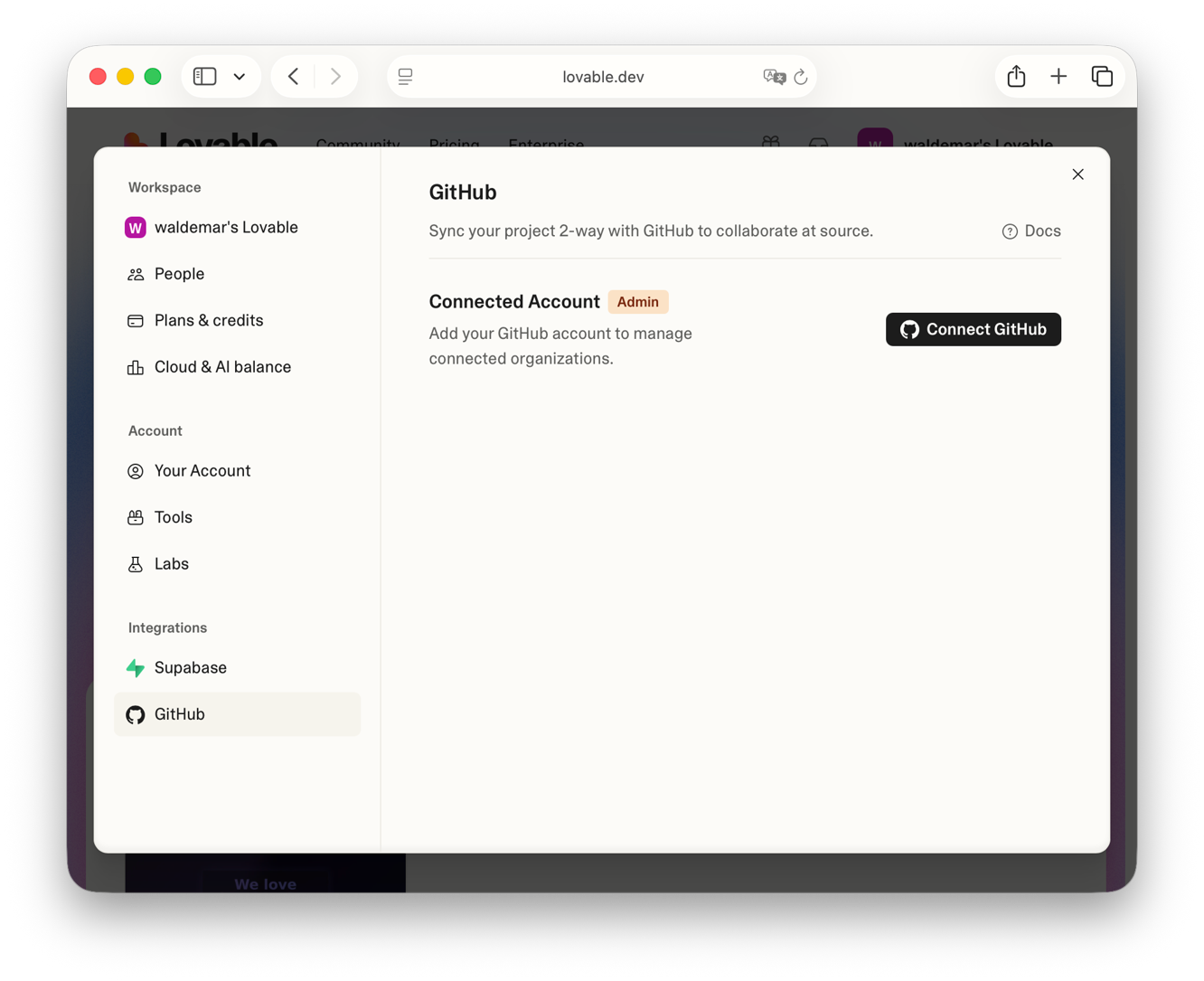
Screenshot: Lovable's GitHub integration page before connecting. Click "Connect to GitHub" to begin.
⚠️ Note: If you don't see the GitHub option, verify that your Lovable subscription plan includes GitHub integration. Some plans may require an upgrade.
Authorize Lovable on GitHub
After clicking "Connect to GitHub", you'll be redirected to GitHub's authorization page where you need to grant Lovable permission to access your GitHub account.
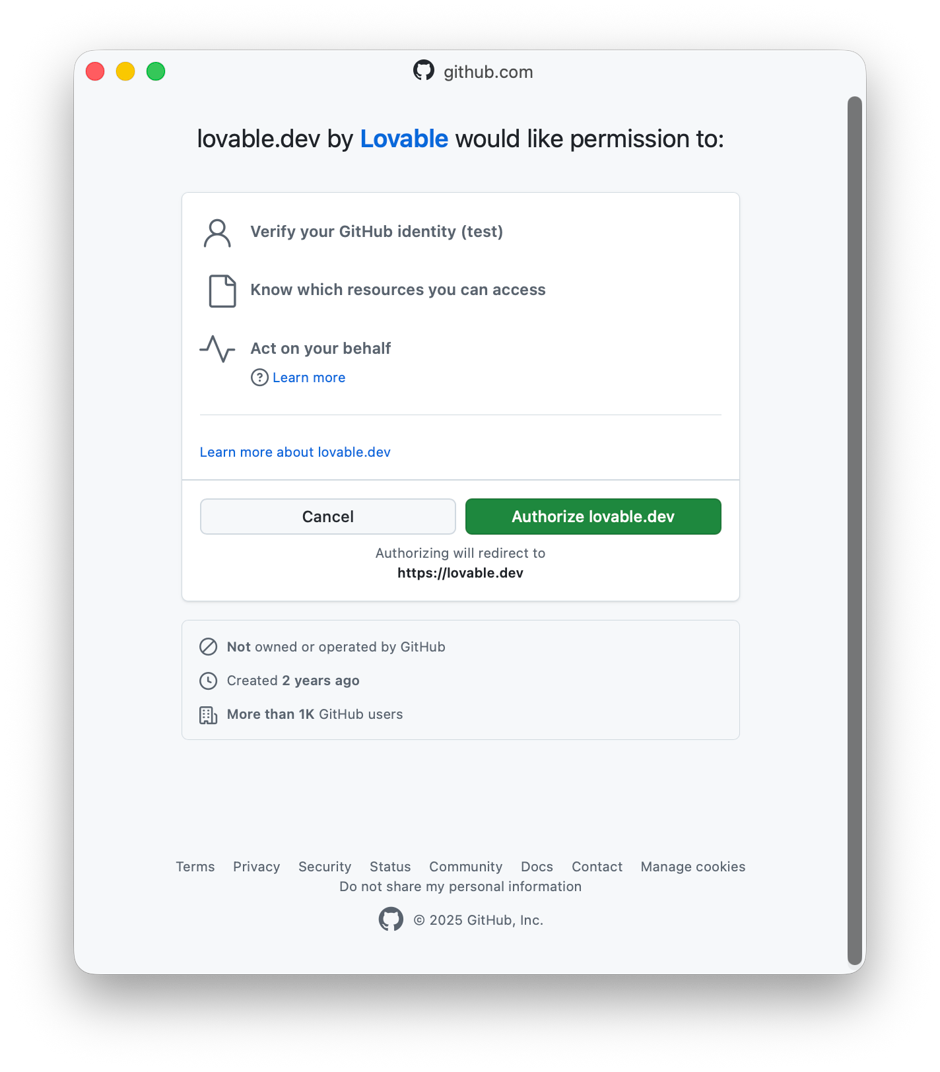
Screenshot: GitHub authorization page where you grant Lovable permissions to create repositories and access your account.
On this page, you'll need to:
- Review the permissions Lovable is requesting
- Click "Authorize" to grant access
- Confirm your GitHub password if prompted for security
Automatic Repository Creation
Once authorized, Lovable automatically creates a new GitHub repository in your GitHub account. This happens instantly - no manual repository creation needed!
The repository will contain:
- All your project's source code
- Dependencies and configuration files
- README with basic project information
- Git history of your changes
Bi-Directional Sync is Active
Here's where it gets powerful: Lovable maintains bi-directional synchronization with your GitHub repository.
How Bi-Directional Sync Works:
Lovable → GitHub:
Changes you make in Lovable are automatically pushed to GitHub in real-time.
GitHub → Lovable:
When you commit and push code to the default branch on GitHub (from VS Code, Cursor, or any IDE), those changes appear in Lovable within seconds - no manual refresh needed!
Verify Connection & Access Your Code
After authorization is complete, you'll be redirected back to Lovable. You should now see confirmation that your GitHub account is connected!
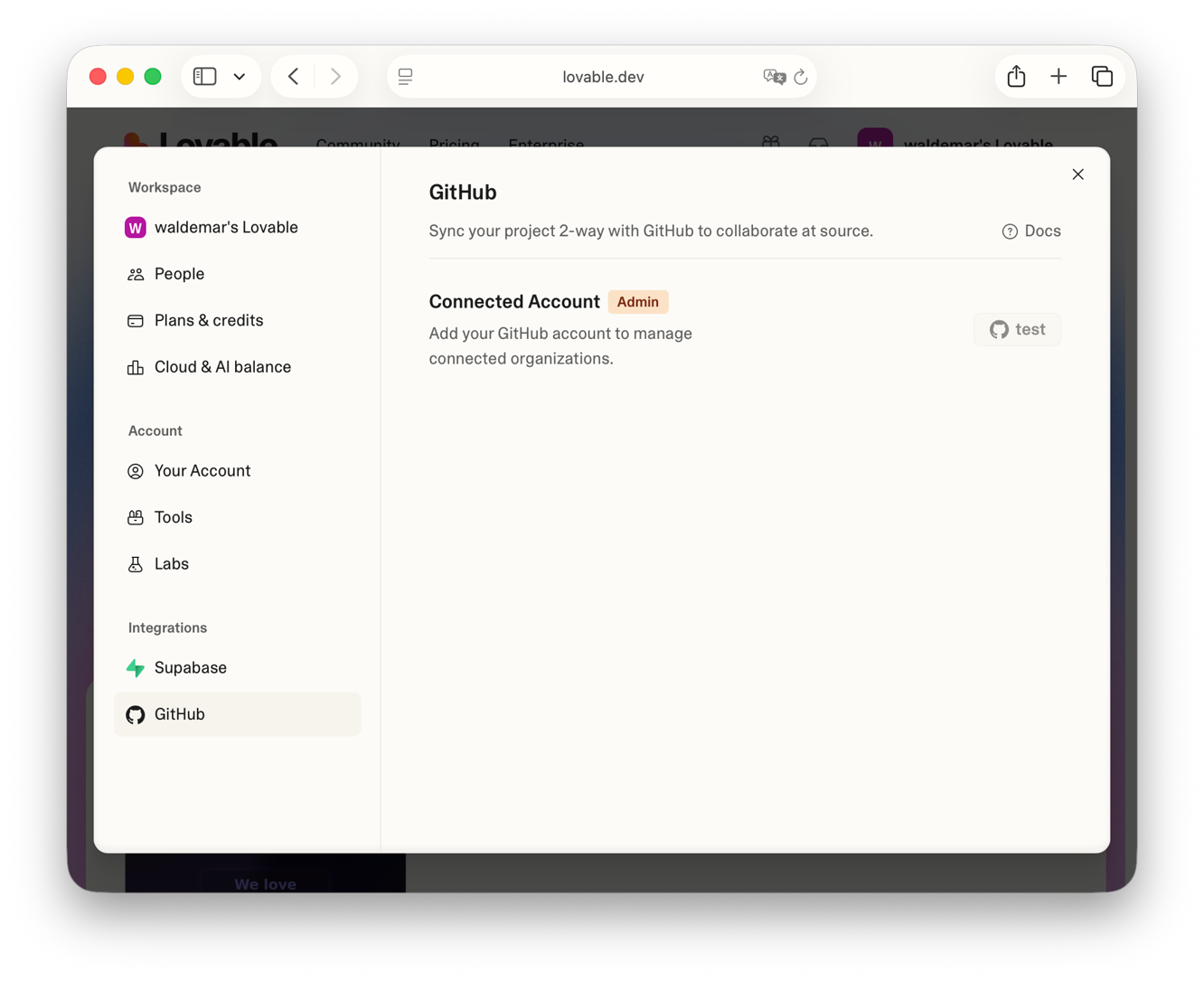
Screenshot: Lovable's GitHub page after successful connection, showing your linked repository and sync status.
Now that GitHub is connected, visit your GitHub account and you'll see the new repository with all your project code. You can now:
- Clone the repository to your local machine
- Share the code with team members
- Set up CI/CD pipelines for automated deployments
- Create branches for feature development
- Deploy to any platform that connects with GitHub
Part 2: Connect Individual Lovable Project to GitHub Repository
Important: After connecting your Lovable account to GitHub (Steps 1-6 above), you need to connect each individual project to create its own GitHub repository. Follow these steps for each project you want to export.
Open Your Project and Click GitHub Icon
Navigate to the specific project you want to export. In your project workspace, locate the GitHub icon and click on it, then select "Connect GitHub".
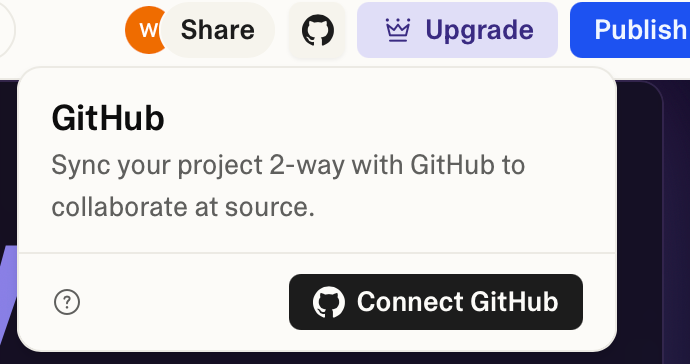
Screenshot: Click the GitHub icon in your project, then click "Connect GitHub" to start connecting this project to a repository.
Click "Connect Project" in GitHub Settings
You'll be taken to the GitHub settings page. Here you'll see options for connecting your project to a GitHub repository. Click the "Connect Project" button to proceed.

Screenshot: GitHub settings page showing the "Connect Project" button to link your project to a new repository.
Confirm Repository Creation
A dialog will appear asking you to confirm the repository creation. Review the repository details and click "Connect" to create the GitHub repository for this project.
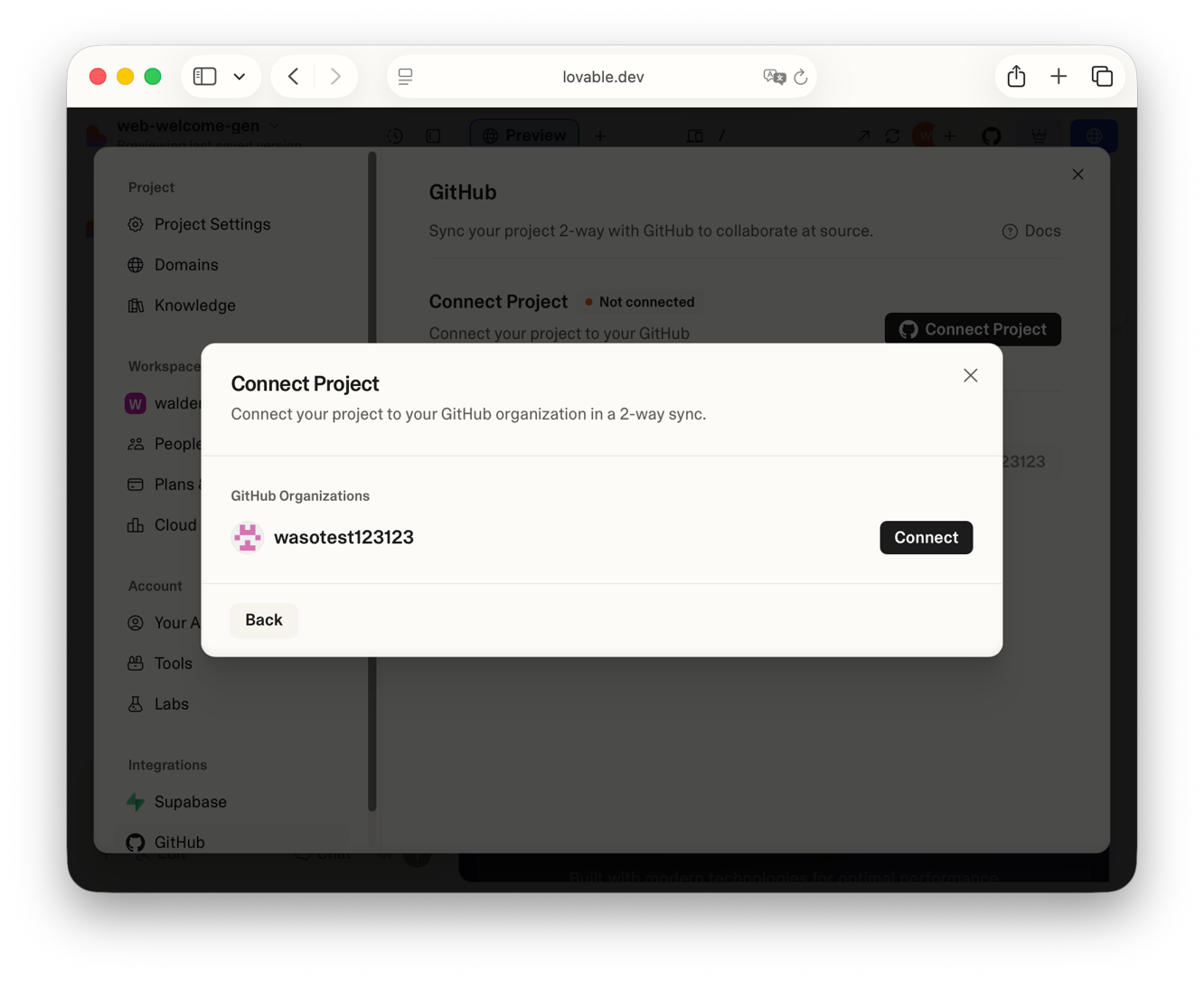
Screenshot: Confirmation dialog showing repository details. Click "Connect" to create the GitHub repository.
Grant Permissions and Select Organization
GitHub will ask you to confirm permissions for the new repository. You'll see a list of your GitHub organizations. Select the organization where you want to create the repository (or your personal account) and click "Continue".
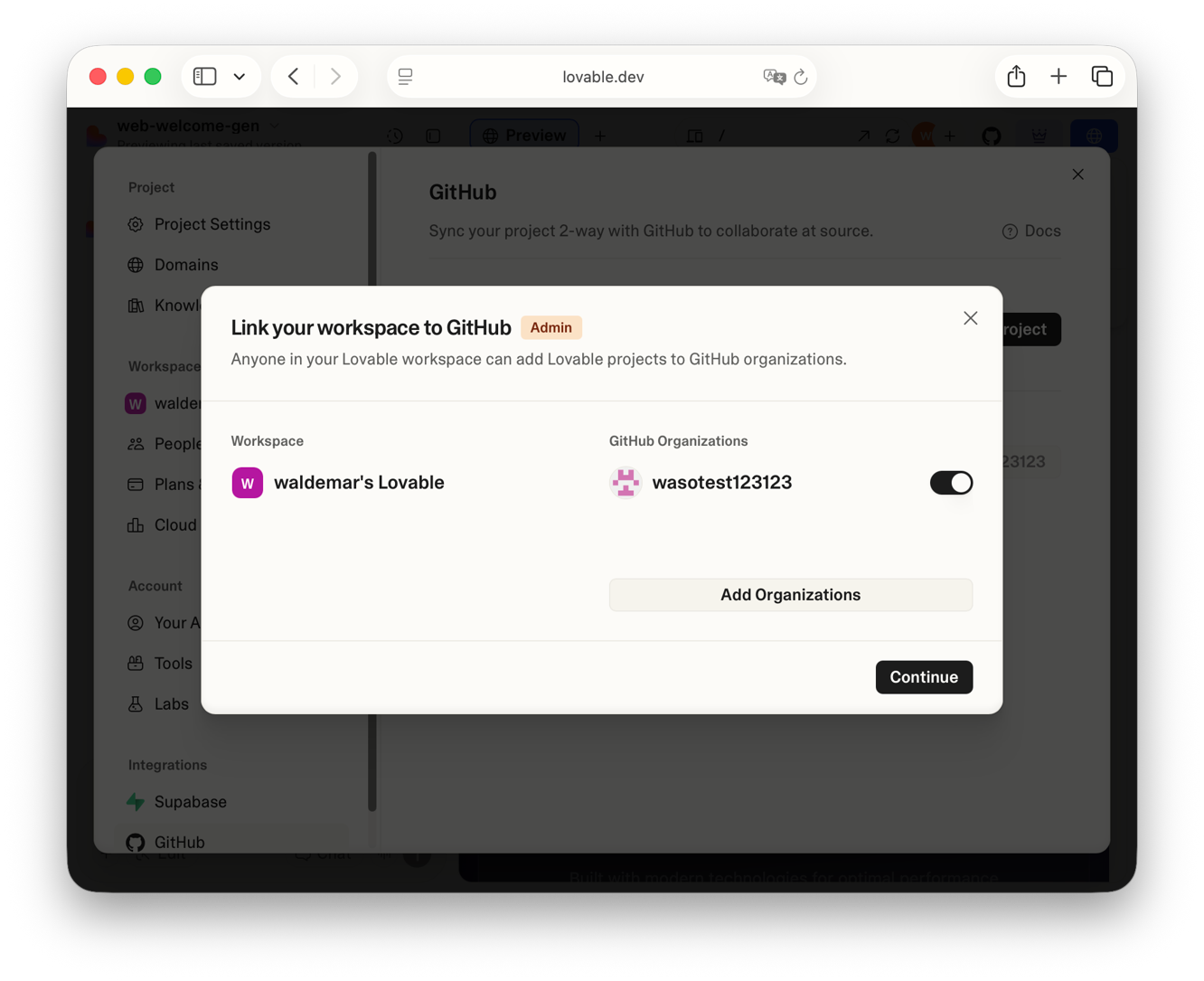
Screenshot: Accept permissions and select your organization, then click "Continue" to finalize the connection.
Success! Your Project is Connected
Congratulations! Your project is now connected to GitHub. You'll see the GitHub repository URL and a new "Clone" button in your GitHub settings. Your project code is now syncing automatically to GitHub!
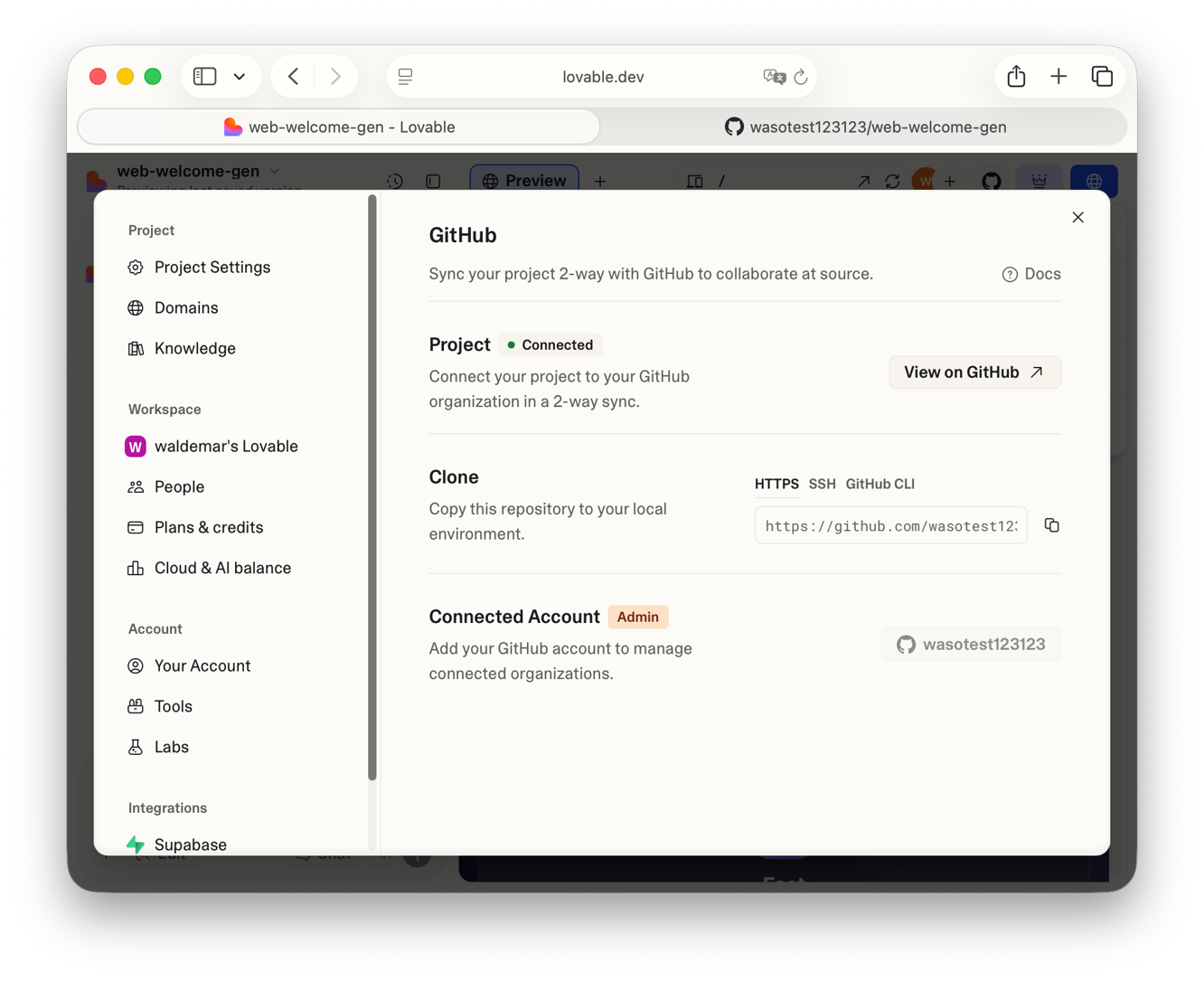
Screenshot: Successfully connected! GitHub settings now shows your repository URL and Clone option.
✅ What Happens Next?
- • Your project code is automatically pushed to the GitHub repository
- • Every change you make in Lovable syncs to GitHub in real-time
- • You can clone the repository to work locally
- • Changes pushed to GitHub from other tools sync back to Lovable
- • You can deploy the repository to any platform (Vercel, Netlify, etc.)
Alternative Method: Export Lovable Project via Browser Extension
For users who don't have GitHub integration access on their Lovable plan, there's a community-built browser extension that allows you to download Lovable projects with one click.
This extension works for users with view access to the code (including Remix or collaboration access) and doesn't require GitHub integration, organization creation, or admin permissions.
Note: This is a third-party tool not officially supported by Lovable. Use at your own discretion.
Can You Export Code on the Lovable Free Plan?
Mostly yes, with one catch. Every Lovable plan backs your project with a Git repository, so your work is versioned from day one. The official GitHub sync described in this guide, however, may require a paid tier: if you do not see the GitHub option in your workspace, your plan likely does not include the integration.
Free-plan users are not stuck, though. The community browser extension covered above lets anyone with view access to a project download its code without GitHub integration, organization setup, or admin permissions. Check your plan's feature list first, then use the extension route if GitHub sync is unavailable.
What to Do After Exporting Lovable Project to GitHub
🚀 Deploy Lovable Project to Vercel
Connect your GitHub repository to Vercel for automatic deployments on every commit. Free tier includes custom domains and global CDN. Perfect for no-code apps that need production hosting.
🌐 Deploy Lovable Project to Netlify
Similar to Vercel, Netlify offers one-click GitHub integration with automatic builds and deployments. Great for static sites and JAMstack applications.
💻 Continue Development Locally with VS Code
Clone your Lovable GitHub repository and continue building in VS Code, Cursor AI, or your preferred IDE. Changes pushed to GitHub automatically sync back to Lovable thanks to bi-directional sync.
👥 Collaborate with Development Teams
Invite team members to your GitHub repository, create branches for features, and use pull requests for code review. Professional workflow for AI-generated applications.
VibeFactory GitHub Export: Enhanced Alternative to Lovable
Like Lovable, VibeFactory offers GitHub integration on paid plans, allowing you to export your AI-generated applications to GitHub repositories. However, VibeFactory adds several unique advantages:
🔄 Live data, not a snapshot
Connect a Google Sheet and the dashboard reads it on every load. Edit the sheet, reload the dashboard, done. No re-uploads and no redeploys.
🛡️ Automated Security Testing
Every deployment runs automated security scans checking for XSS, SQL injection, and insecure dependencies. Your GitHub-exported code is production-ready.
📊 Dashboards, not apps
VibeFactory does not build apps. It turns Excel, CSV and Google Sheets into live dashboards in about a minute, which is what many Lovable projects were for in the first place.
📱 Automatic Social Media Optimization
Your exported projects automatically include Open Graph and Twitter Card meta tags for perfect social sharing - no manual HTML editing required.
💰 More Affordable
VibeFactory's Starter plan starts at $10/month, compared to Lovable's higher pricing tiers.
Frequently Asked Questions About Exporting Lovable to GitHub
Do I need a paid Lovable plan to export to GitHub?
GitHub integration availability depends on your Lovable subscription plan. Check your plan features or upgrade if needed. All plans include Git backing, but GitHub connection may require a paid tier.
Can I disconnect GitHub after exporting?
Yes, you can disconnect GitHub at any time. The repository will remain in your GitHub account with all the code, but bi-directional syncing will stop.
What happens if I edit code on GitHub?
Changes pushed to the default branch on GitHub automatically sync to Lovable within seconds. You can seamlessly work in both environments.
Can I use the code commercially?
Yes, you have full ownership of the code exported to GitHub. You can use it for commercial purposes, modify it, and deploy it anywhere according to Lovable's terms of service.
Does VibeFactory's GitHub export work the same way?
VibeFactory is a dashboard generator, not an app builder, so the comparison is not one to one. You can download any dashboard as an offline ZIP or its source code from the Export tab, and paid plans can also push the dashboard to a GitHub repository.
Conclusion: Export Your Lovable Project to GitHub Today
Exporting your Lovable project to GitHub is an essential step for any developer looking to maintain code ownership, deploy to custom hosting platforms, or collaborate with teams. This comprehensive guide has walked you through the complete two-part process:
- Part 1: Connecting your Lovable account to GitHub (one-time setup)
- Part 2: Linking individual projects to create GitHub repositories
- Bi-directional sync: Automatic code synchronization between Lovable and GitHub
- Deployment options: Vercel, Netlify, or any hosting platform
With your Lovable-generated code on GitHub, you can deploy to Vercel or Netlify with one click, continue development in VS Code or Cursor AI, set up CI/CD pipelines, and collaborate with your team using professional version control workflows.
💡 Key Takeaways:
- ✓ GitHub integration requires a Lovable plan that includes this feature
- ✓ The process has two parts: account connection + project connection
- ✓ Bi-directional sync keeps Lovable and GitHub in perfect sync
- ✓ You can deploy exported code to any hosting platform
- ✓ VibeFactory offers similar GitHub export with added AI-powered features
🚀 Ready to Build Your Next App?
Whether you're using Lovable's GitHub integration or exploring alternatives, the ability to export and own your code is crucial. If the project you are exporting was really a dashboard for your data, see how dashboard tools compare: VibeFactory builds one from Excel, CSV or Google Sheets from $0.99.
Lovable vs VibeFactory.ai — Why Teams Are Switching
| Feature | Lovable | VibeFactory.ai |
|---|---|---|
| Dashboard from Excel/CSV | ❌ Manual setup | ✅ AI-generated in 60 seconds |
| Live Data Connection | ❌ Not supported | ✅ Google Sheets & Excel live connection |
| Export to ZIP/Email | ⚠️ GitHub only | ✅ ZIP, Email, or GitHub |
| Free Tier | Limited | ✅ Pay-per-dashboard from $0.99 |
| AI Assistant | ✅ General-purpose | ✅ Data-focused with chart expertise |
Related Articles
All Lovable Articles
Browse all articles about Lovable.dev - tutorials, guides, and comparisons.
How to Cancel Lovable Subscription
Step-by-step guide to canceling your Lovable plan and stopping billing.
Best AI Dashboard Generators for Excel (2026)
If you only need a dashboard from your data, these are the tools worth comparing.